


When data exists but control is missing
A company operating its own fleet of vehicles or heavy equipment almost always already has a monitoring system—Wialon, Omnicomm, Fort Monitor, or a comparable solution. It reliably displays coordinates, tracks, sensor-based fuel levels, and refueling and fuel-drain events. Many companies go further and integrate monitoring with 1C. On the surface, all the information needed for control seems to be available. Yet managers still cannot answer basic questions: Which request was associated with a refueling event? Is it supported by a document? Who received the fuel? What work has been performed on the vehicle? When is its next scheduled maintenance?
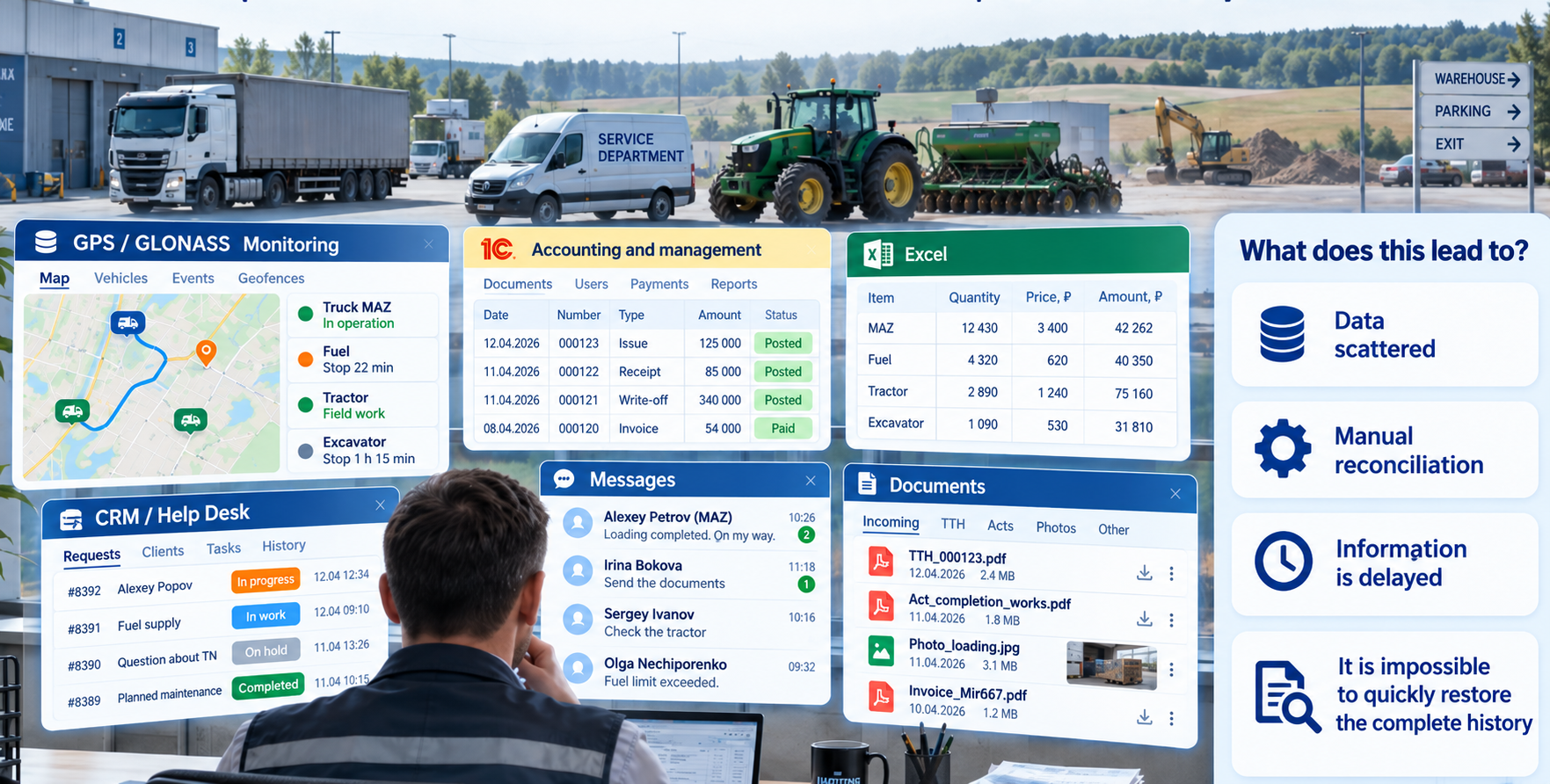
The reason is that monitoring provides only one layer of information. It answers “what happened to the equipment,” but not “what should be done about it,” “what evidence supports it,” or “which document records it.” Fuel requests, delivery work orders, card-based dispensing, maintenance activities, inventory documents, and field-service assignments remain outside the monitoring system. Each process lives in its own environment: a help desk, CRM, Excel, messengers, or paper logs. Dispatchers, mechanics, and engineers rarely work directly in accounting systems, so their data is entered manually and with delays.
As a result, data remains fragmented even when monitoring is integrated with 1C. The monitoring system shows one picture, accounting records show another, and supporting documents show a third. Reconciliation by hand is nearly impossible.
Monitoring and tachograph service providers face an even greater challenge. They support dozens of customers, each with its own infrastructure, devices, and systems. Teams must use multiple monitoring platforms at the same time, handle service requests in a help desk or CRM, assign installers through messaging apps, collect photo reports, and prepare completion certificates manually. The links between a request, a site visit, completed work, and its supporting document are easily lost.
Exzotron solves this problem. It is not simply a like-for-like replacement of one monitoring platform with another. It is a platform that includes monitoring and connects it to other business processes within one unified environment. Monitoring data automatically becomes part of operational records rather than remaining a separate information layer. Instead of a stand-alone refueling event, you see a connected sequence: request → work order → loading → route → unloading → document. Instead of mileage alone, you see a vehicle’s maintenance history, including service work orders and photographic evidence.
Figure 1. Disconnected systems leave managers with fragmented information
Why monitoring alone is not enough for management
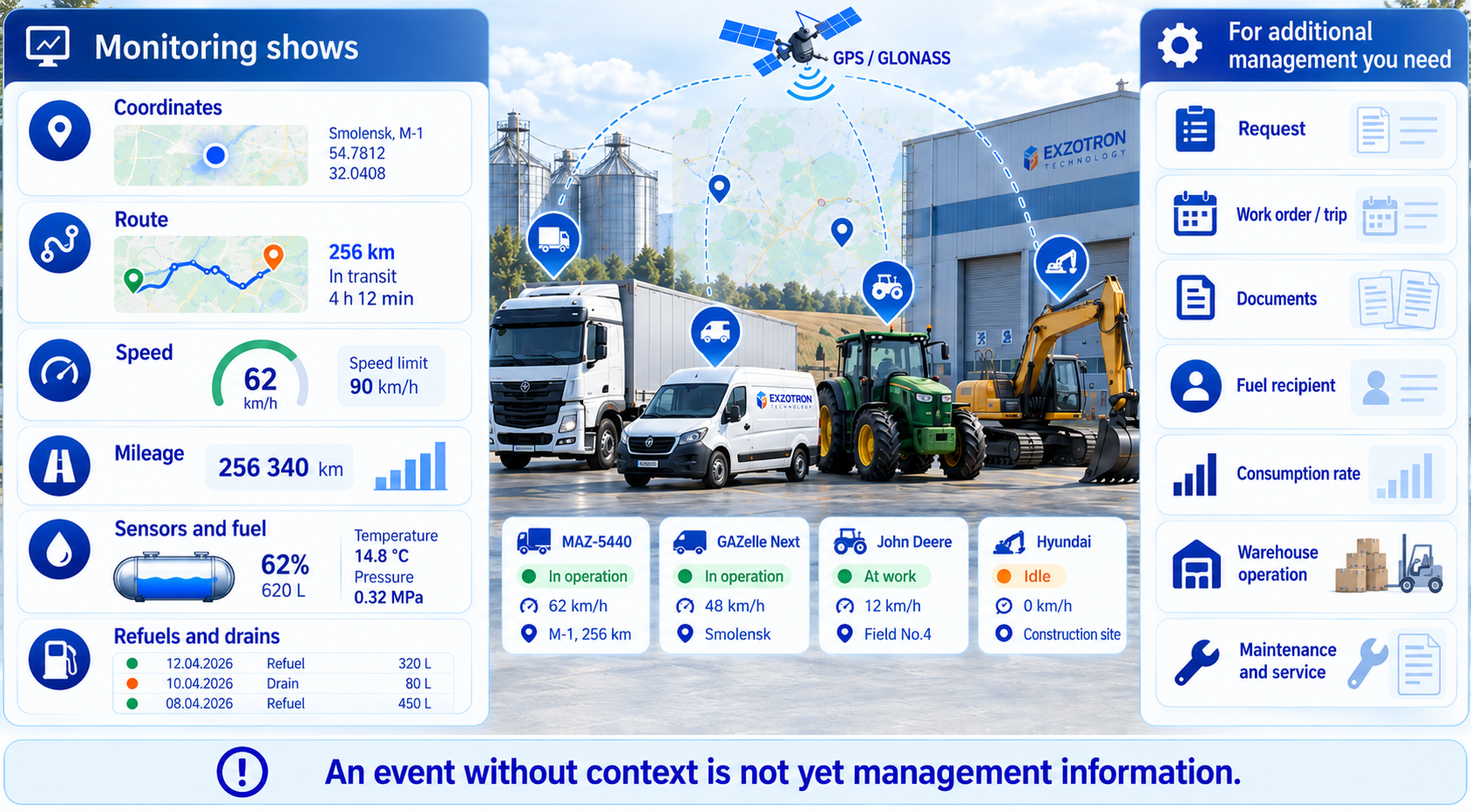
Monitoring provides a telemetry layer: where equipment is, what has happened to it, which sensors were activated, and how much fuel was received or consumed. This information is essential for real-time observation, but it is not sufficient for operational management.
A conventional monitoring system does not answer how much fuel should be in the tank according to records; whether a refueling event is supported by a card allocation or warehouse document; which work order, trip, or request belongs to an event; whether consumption complies with a company’s operating standards; or when scheduled maintenance is due based on mileage or engine hours.
These details reside in accounting systems, where they often have to be entered manually. Frontline staff do not always do this, resulting in incomplete and delayed information. Monitoring captures an event but not its accounting and operational consequences.
Figure 2. Telemetry is only one component of the full operational picture
What is Exzotron monitoring?
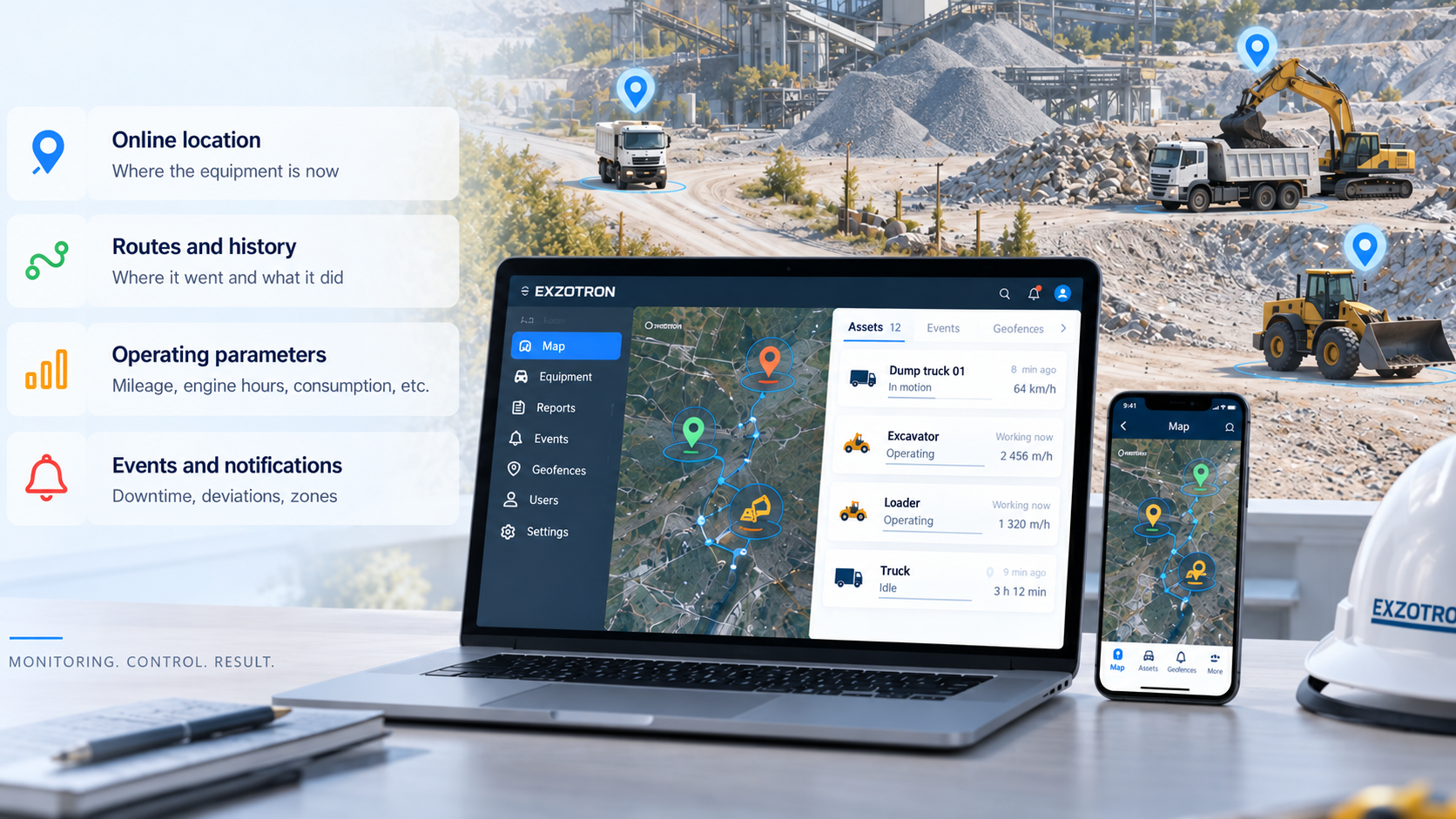
Exzotron monitoring is not just a stand-alone map. It is a telematics layer within a unified platform. Data from trackers and sensors is automatically linked to fuel accounting, warehouse documents, maintenance work orders, delivery requests, and analytics. Each asset has a consolidated history of trips, refueling, fuel drains, consumption, maintenance, and documents.
Managers see a comprehensive view of equipment operation rather than isolated charts. Dispatchers work in a single environment instead of switching between monitoring systems, 1C, Excel, and messaging apps. Mechanics use mileage and fuel consumption data to plan maintenance. Field-service engineers can view service orders and photo reports for every asset.
Figure 3. Unified tracking, operating parameters, events, and alerts
Assets and the asset list
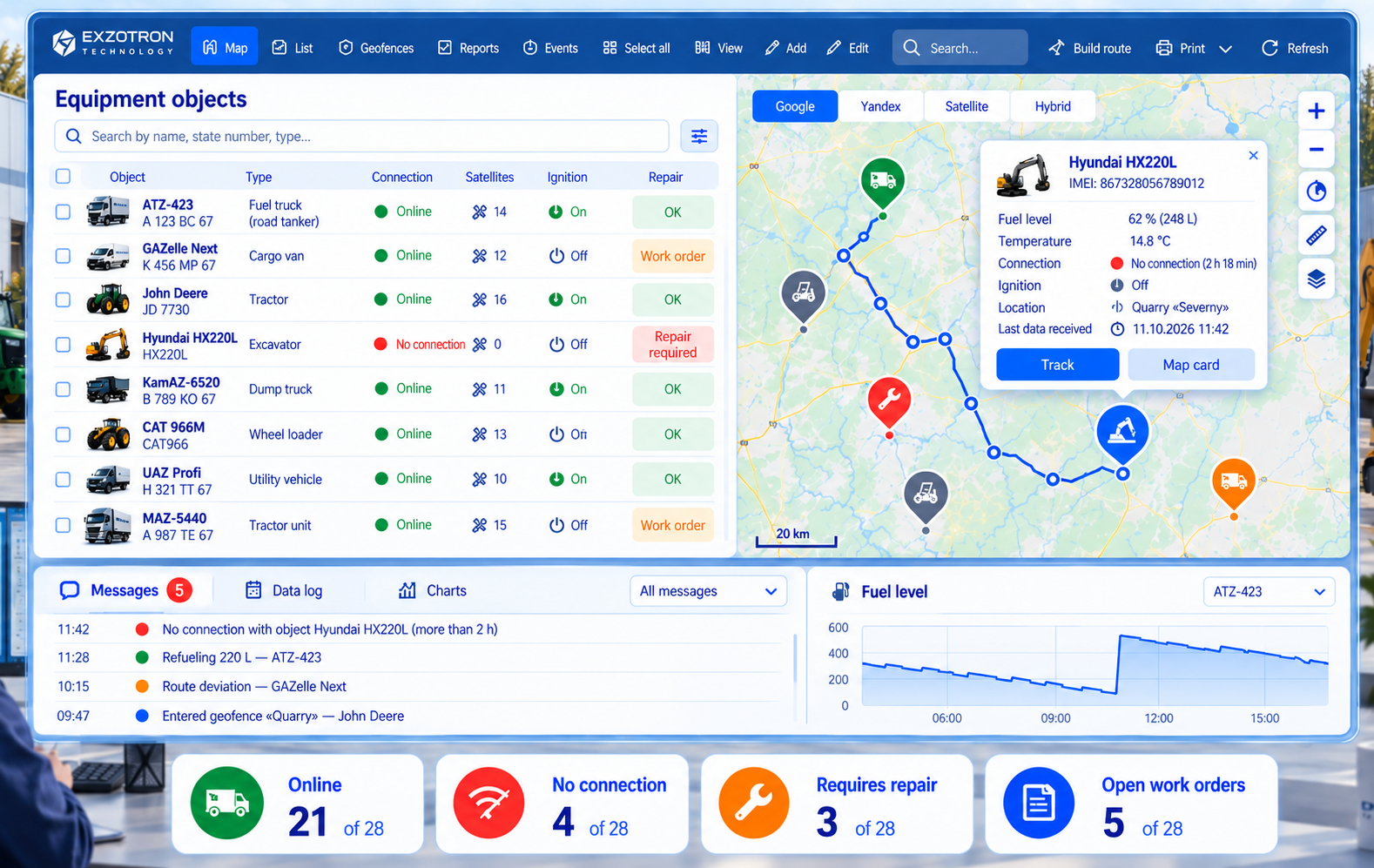
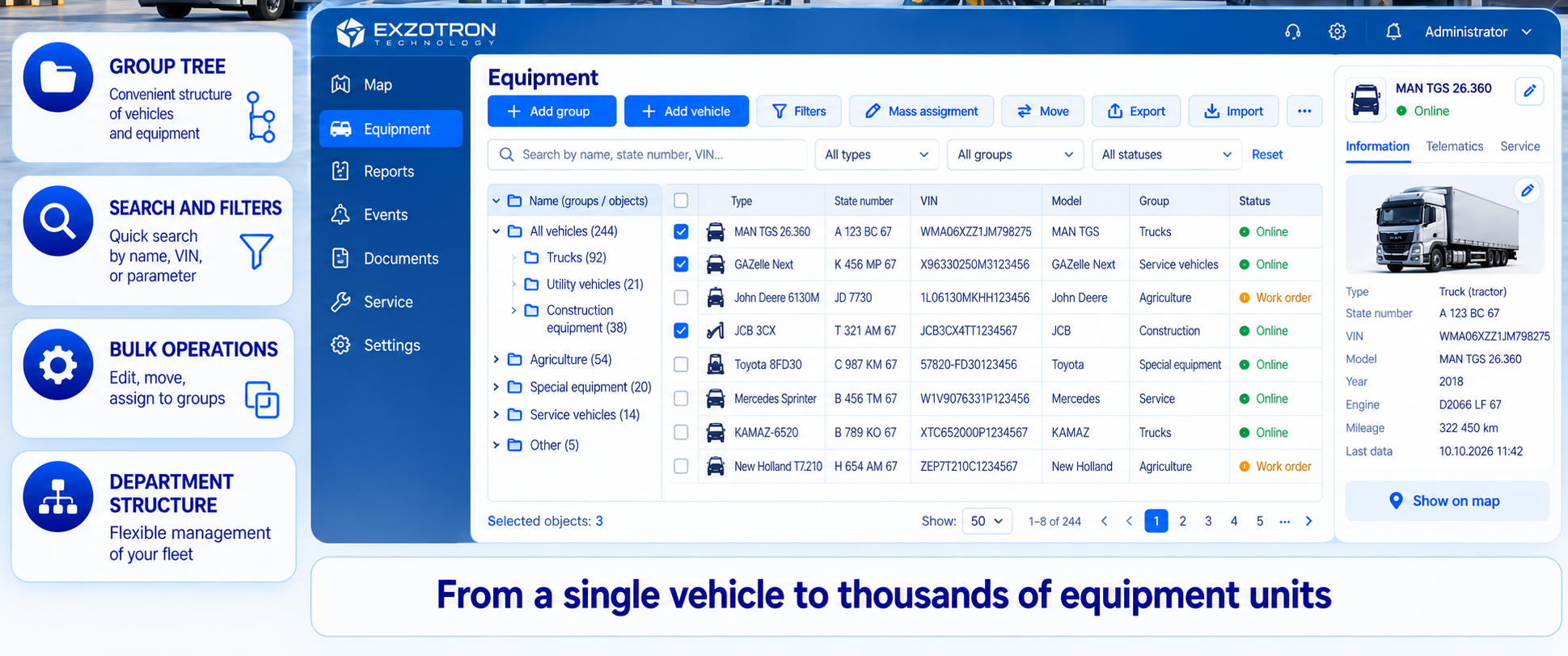
The main Assets screen is the workspace for dispatchers and managers. The asset list is on the left and the map is on the right. A toolbar above the list controls how assets are displayed and provides quick access to everyday operations.
Asset list
Each row in the asset list includes:
- · a selection checkbox;
- · an equipment-type icon;
- · the asset name (or its IMEI if no name has been assigned);
- · an edit-properties pencil icon;
- · connection status (green antenna for online, red cross for offline);
- · the number of satellites;
- · ignition status (green key for on, gray for off).
When applicable, a maintenance indicator is also shown: red means the asset requires repair but has no open service order, while orange means a service order is already open. Dispatchers can immediately identify which equipment needs attention.
Toolbar
The toolbar above the list includes:
- · Display modes — a classic table, a new map interface, and the geofence editor. The table is useful for reviewing and bulk-editing assets; the map provides visual monitoring; the geofence mode is for zone configuration.
- · Select all assets — mark all items in the list.
- · Clear selection — remove all checkmarks.
- · List or tree view — group assets with drag-and-drop. The tree can be arranged by business unit, equipment type, or other criteria; assets can be reassigned by dragging them between groups.
- · Add group or asset — create a new group or asset. Asset setup includes IMEI, name, equipment type, group, and business unit, followed by sensor and relationship configuration.
- · Table view — bulk-edit groups, equipment types, business units, sensor settings, display parameters, and customer associations across several assets.
- · Search — find assets by name, IMEI, or license plate; filter by group, connection status, and business unit.
- · Build a track — select an asset and time period to visualize its route.
- · Open the lower panel — access charts and messages.
- · Refresh — update the list manually; automatic refresh is also available and a loading indicator is shown during updates.
Figure 5. Asset groups, filters, bulk actions, and company structure
Map and map tools
The map occupies most of the screen. Users can choose Google, Yandex, satellite, or hybrid map layers, measure distances and areas, and change the zoom level. Each selected asset appears as a map marker. Clicking the marker opens a popup showing its status and sensor readings.
Map marker popup
The popup contains:
- · asset name and IMEI;
- · current sensor values, including fuel level, temperature, ignition, and other readings;
- · connection status;
- · ignition status;
- · address, based on an address geofence or map lookup;
- · time of the last received data packet;
- · buttons opening the track or asset record.
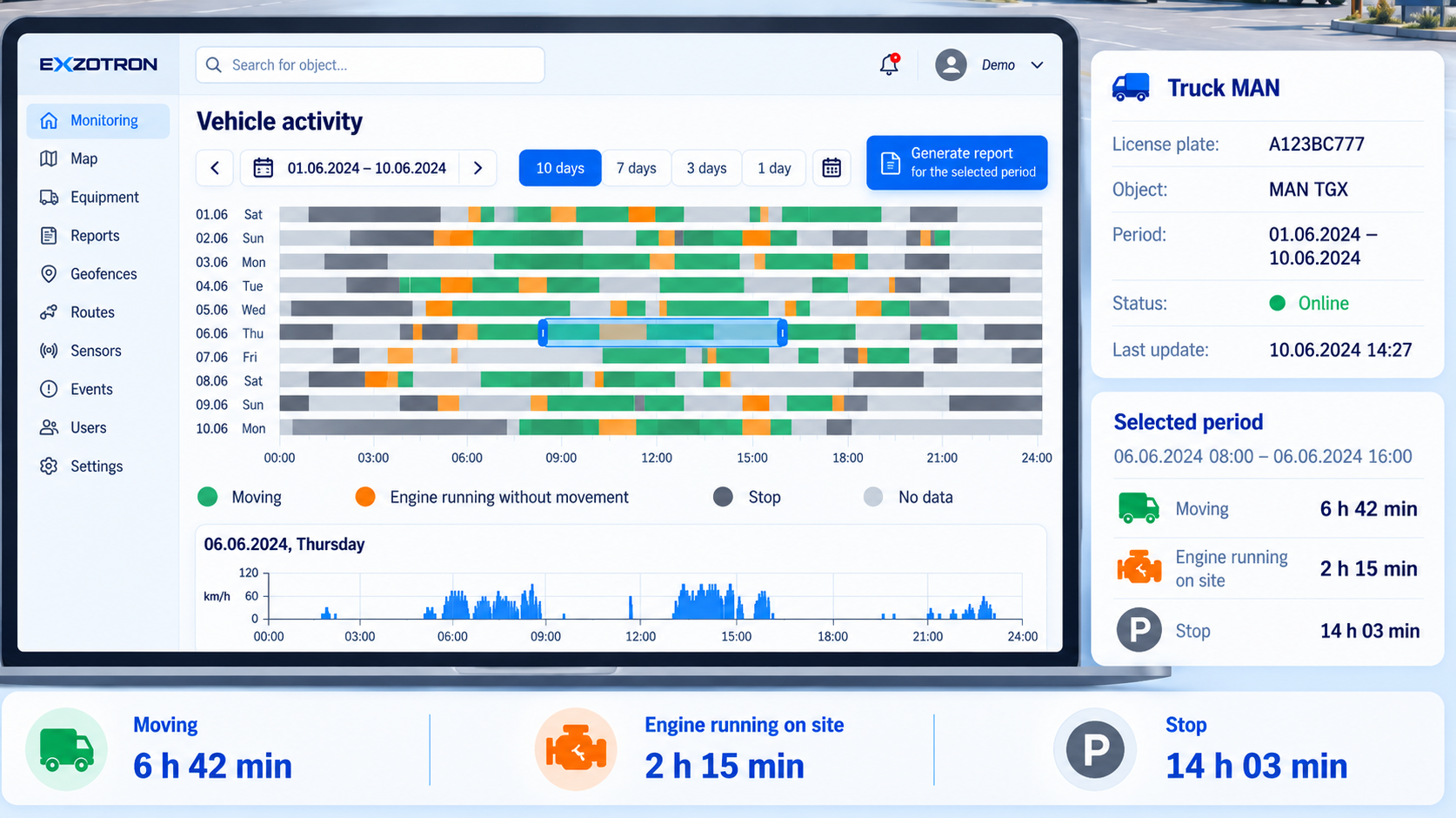
Asset activity timeline
A timeline appears above the map showing the last ten days of asset activity in 15-minute intervals. Its colors indicate:
- · green — movement;
- · orange — stopped with the ignition on;
- · gray — stopped with the ignition off;
- · light gray — no data.
Dragging across the timeline selects a time interval and inserts it into the report controls. Users can quickly assess how equipment has been used and investigate a specific period without entering dates manually.
Figure 6. Ten-day equipment activity timeline with 15-minute intervals
Asset track
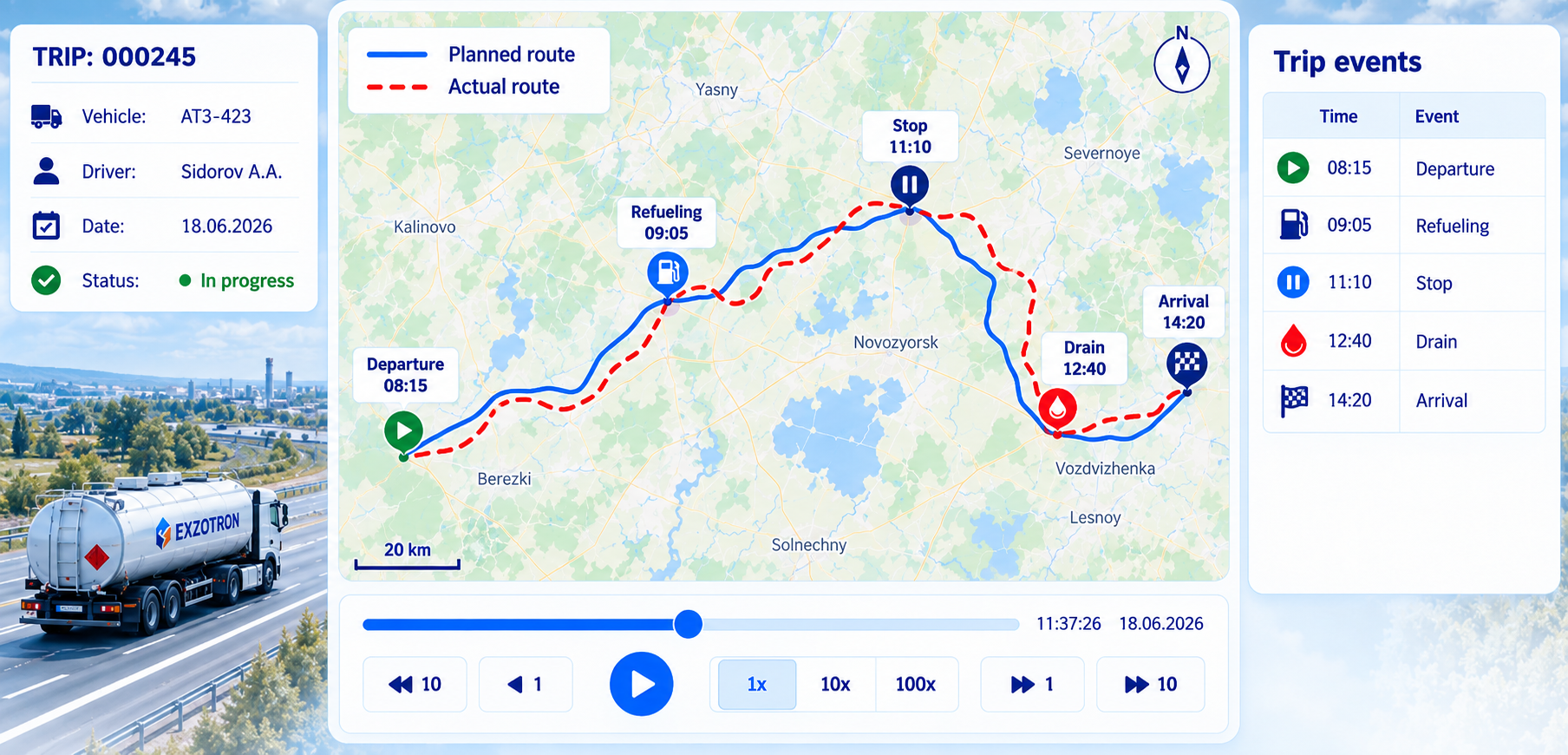
When a track is generated, the route line shows the direction of travel. Additional markers identify:
- · the start and finish, with the distance traveled;
- · refueling events (green “+”) and fuel drains (red “−”), each with a detailed popup;
- · stops, including their number, “P” symbol, and duration;
- · the asset’s current location.
The track player supports movement point by point or in steps of ±10, playback at speeds from 1× to 1000×, and the time and speed at every point. This is useful for investigating disputes: the entire trip can be reconstructed, including stops, idle time, refueling, and fuel drains.
A track is more than a line on a map. It is a visual record of a trip linked to other modules: refueling is reconciled with fuel allocations, fuel drains with warehouse documents, and stops with maintenance activity.
Figure 7. Trip playback, route events, and planned-versus-actual routes
Editing asset properties
Clicking the pencil icon in the list or the Edit button in the properties panel opens a four-tab dialog.
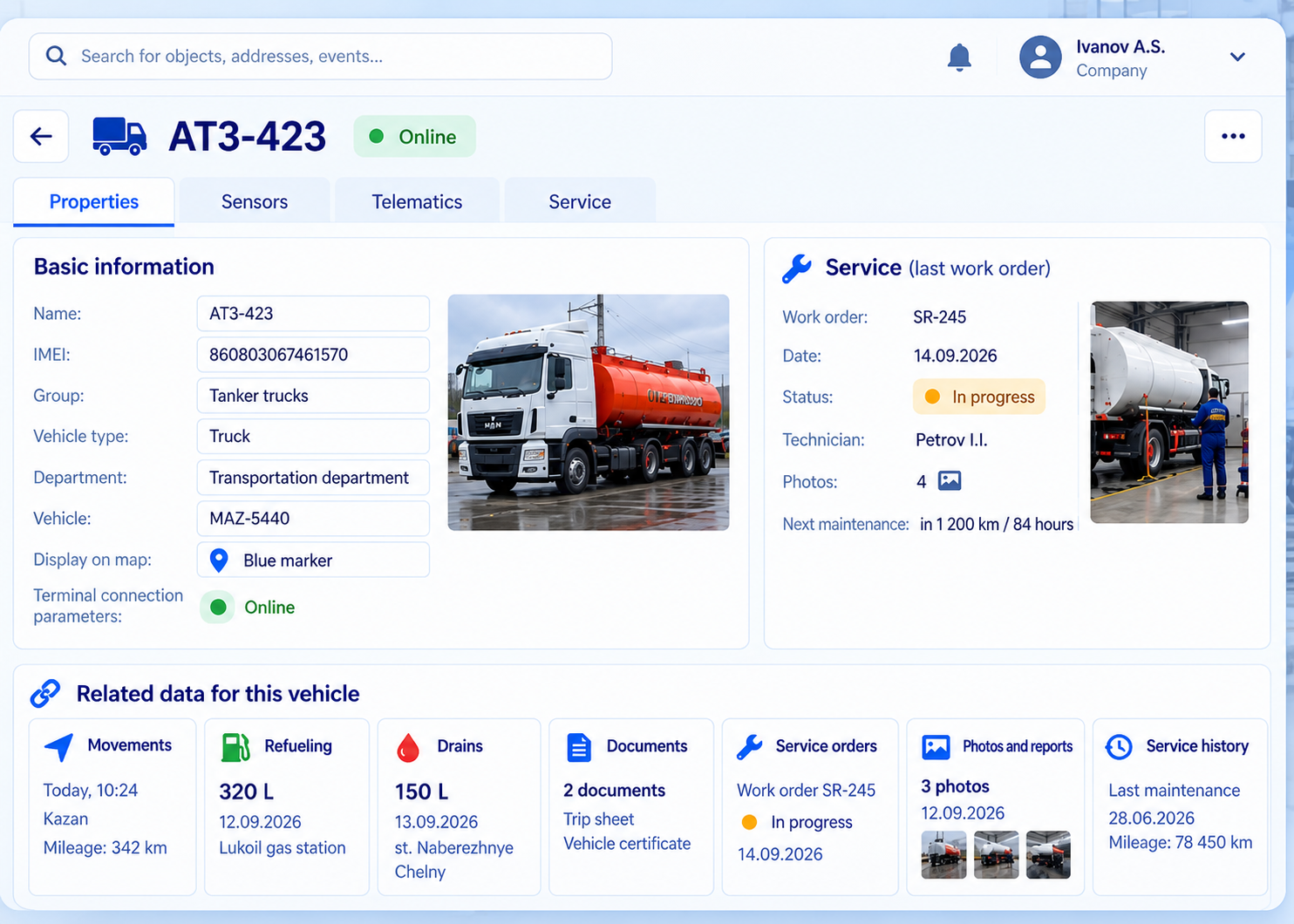
Properties tab
The tab contains the core asset parameters:
- · asset name;
- · IMEI;
- · group;
- · equipment type;
- · business-unit assignment;
- · linked vehicle (for RFID card association);
- · map display settings (icon and color);
- · terminal communication settings.
Figure 8. Asset details and linked service, fuel, and document history
Sensors tab
This tab configures sensors assigned to the asset:
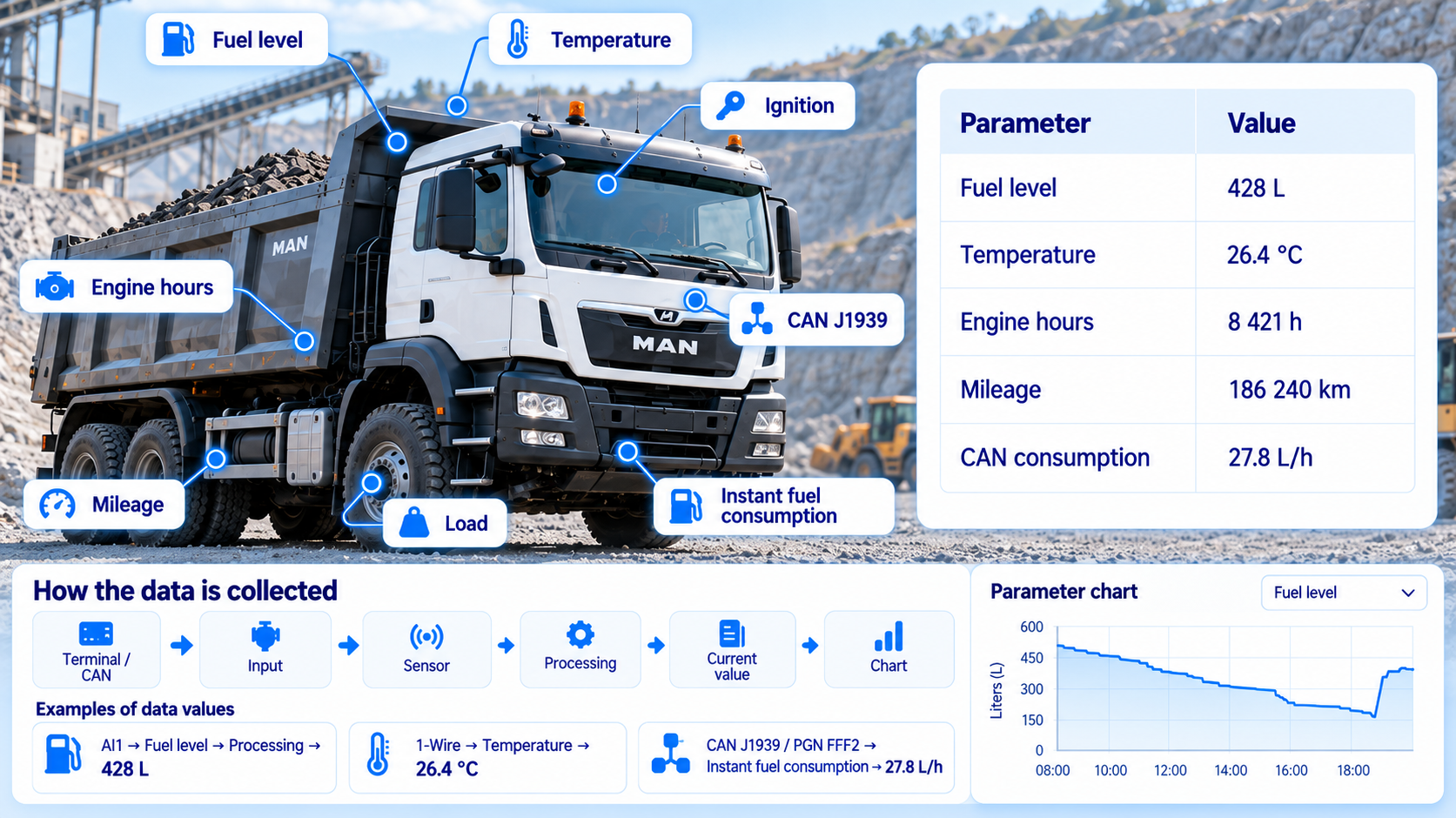
- · a list of sensor types, including fuel level, temperature, ignition, load, instantaneous fuel consumption, and engine hours;
- · input mapping between terminal parameters and sensors;
- · calibration tables that convert raw sensor readings to physical values, such as liters for a fuel-level sensor;
- · calculation parameters, including integration of instantaneous consumption from PGN FEF2;
- · validation with test values and real-time charts.
Figure 9. Sensor readings, CAN bus data, and telemetry processing
Data forwarding tab
Configure forwarding to other servers or systems:
- · recipient list (addresses, ports, and protocols);
- · transfer rules (which data to forward and at what frequency);
- · connection status;
- · transmission logs.
These features are particularly useful for system integrators and service companies that retransmit telemetry to their customers or third-party monitoring systems.
Service tab
This tab provides the asset’s maintenance history:
- · all service orders with dates, statuses, and assigned technicians;
- · a unified photo feed from service orders, with each photo labeled by order number;
- · scheduled maintenance planning by mileage and engine hours;
- · maintenance reminders.
Asset properties panel
Selecting an asset opens a lower properties panel containing:
- · asset name, IMEI, timestamp of the last data packet, motion status, and address;
- · sensor readings with “Show on chart” checkboxes;
- · an Edit button to open the asset properties dialog.
Lower panel
The lower panel contains three tabs.
Messages
A queue of SMS/GPRS commands for the asset, a log of sent and received messages, and a command entry field help technical specialists:
- · send terminal commands for restart, configuration, and data requests;
- · view queued commands;
- · review sent and received messages;
- · diagnose terminal connectivity.
Received data log
The raw terminal packet table supports:
- · configurable columns for time, coordinates, speed, and sensor values;
- · export to Excel;
- · equipment diagnostics and investigation of abnormal events.
Charts
Charts display the sensors selected in the asset properties, making it possible to analyze how fuel level, temperature, speed, and ignition status change over time. They are used to investigate refueling, fuel drains, overheating, and other events.
Geofences
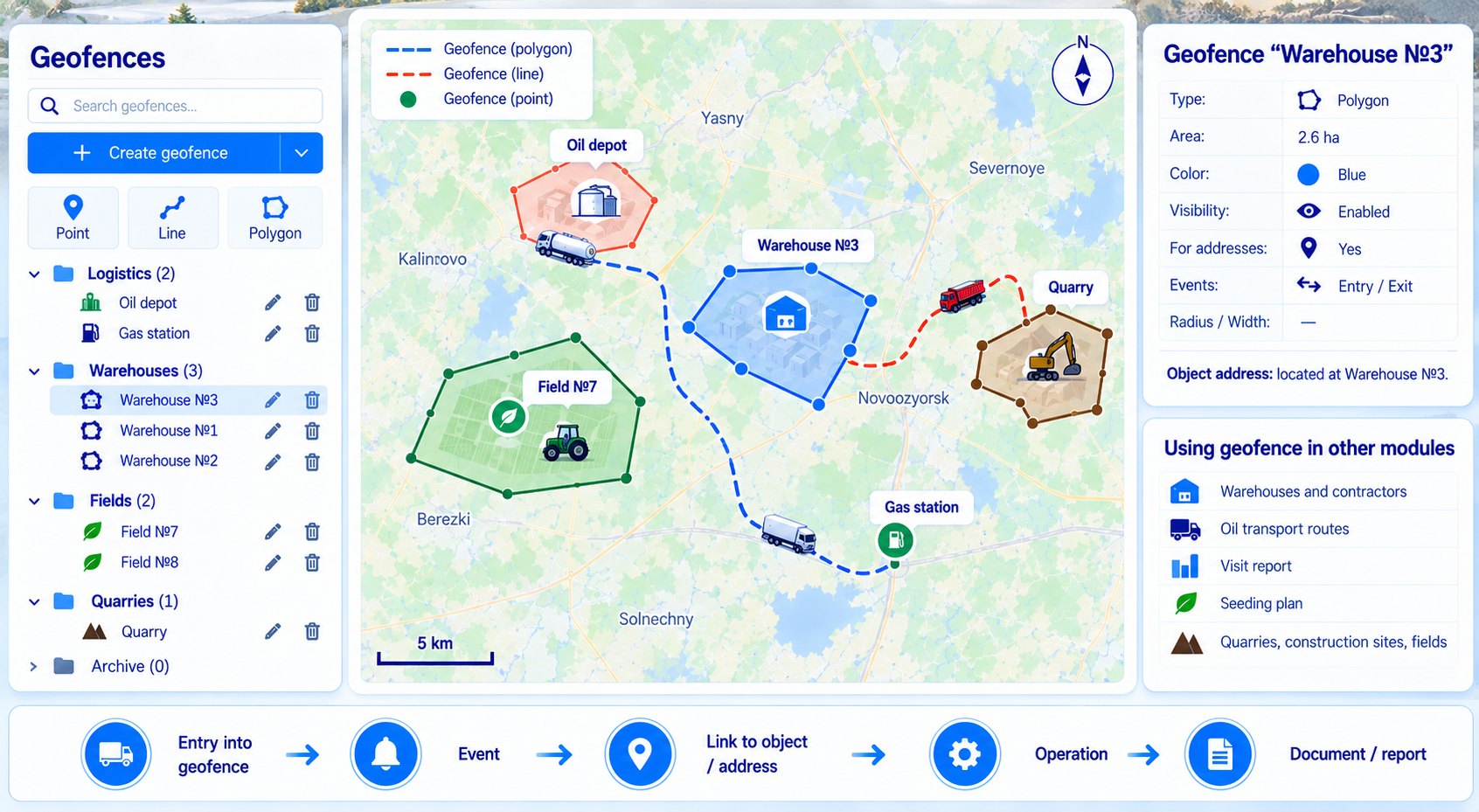
Geofences mode replaces the asset list with a geofence tree. Users can:
- · create groups, points, lines, and polygons;
- · edit, delete, and search geofences;
- · configure geofence type, area, color, radius or width, visibility, and the “Use for addresses” option;
- · drag geofences between groups.
“Use for addresses” option
When this setting is enabled, the system uses the geofence to assign a meaningful location to an asset. Reports and asset records can show “at Warehouse 3,” “at the quarry,” or “in Field 7” instead of just a set of coordinates. This makes operational data easier to understand and analyze.
Geofences in other modules
Geofences link warehouses, customers, tanker-truck routes, visit reports, planting plans, parking areas, quarries, and fields. Correctly configured geofences enable automatic recognition of loading, unloading, arrival at a site, and field work. A warehouse geofence can trigger an inventory transaction when a tanker unloads, while a field geofence assigns fuel consumption to a specific area of agricultural work.
Figure 10. Geofences connect physical locations with operational events and documents
Sensors and telemetry
An asset can have a variety of connected sensors:
- · fuel level sensors (FLS);
- · temperature;
- · ignition;
- · load;
- · instantaneous fuel consumption, including readings from CAN bus PGN FEF2;
- · engine hours;
- · mileage;
- · other parameters.
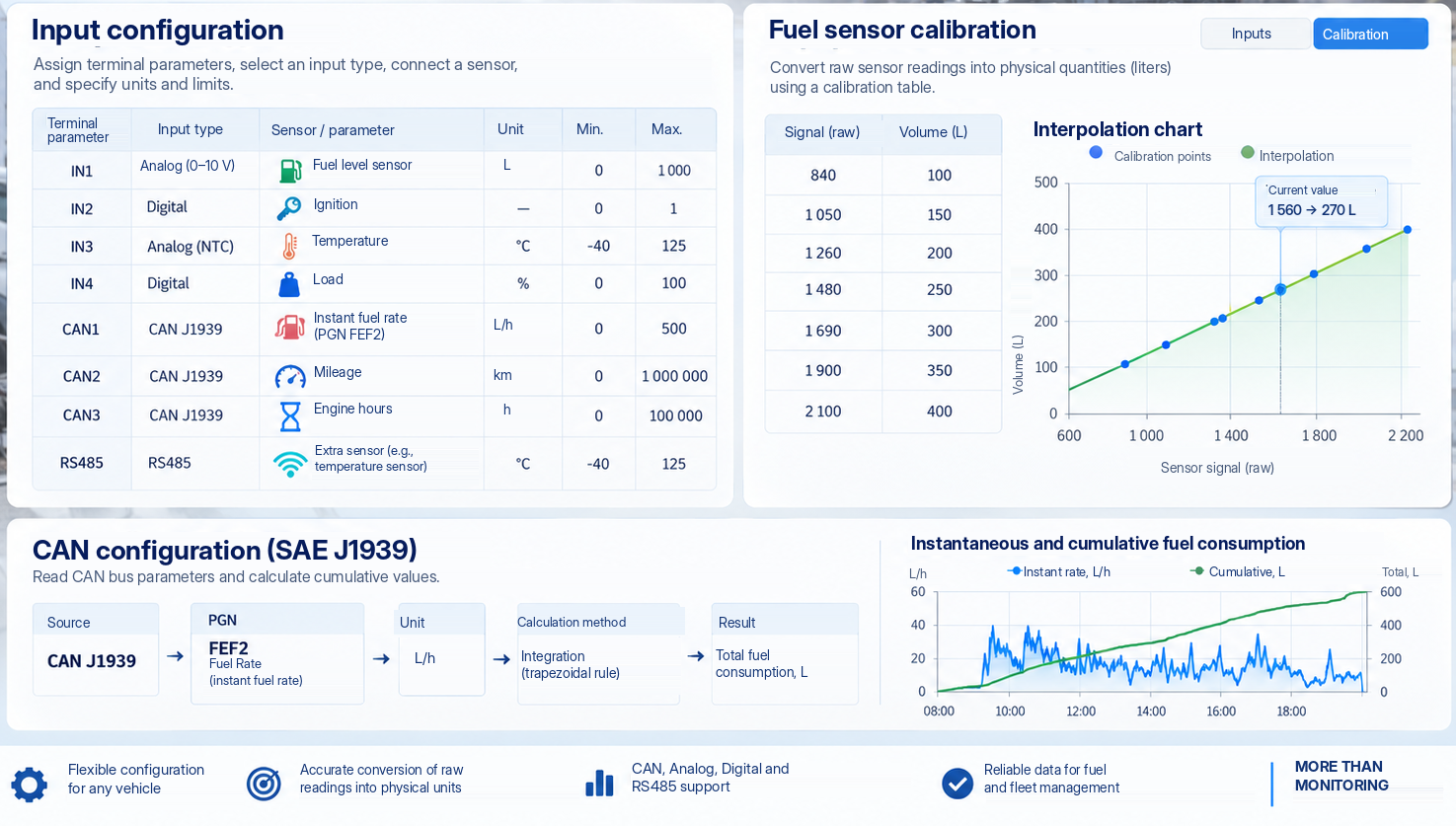
Readings appear in the asset record and on charts. Sensors are configured through the Inputs and Calibration tabs.
Input configuration
The Inputs tab defines which terminal parameter corresponds to a particular sensor. For a fuel-level sensor, this includes the input, units of measurement, and limits. For instantaneous fuel consumption, it includes the relevant CAN bus PGN.
Calibration
A calibration table converts raw values into physical measurements. For fuel-level sensors, it maps the level measured in centimeters to volume in liters through linear interpolation. Values may be taken from the manufacturer or obtained during field measurements.
Fuel consumption from instantaneous readings (PGN FEF2)
A specialized sensor configuration calculates fuel consumption from instantaneous CAN bus readings (SAE J1939, PGN 0xFEF2). This is used when the ECU transmits the current flow rate in liters per hour rather than a cumulative fuel-consumption counter. The algorithm integrates instantaneous readings over time using the trapezoidal method. Configuration is performed through the Inputs and Calibration tabs.
Figure 11. Terminal inputs, fuel sensor calibration, and CAN J1939 consumption calculations
Events and notifications
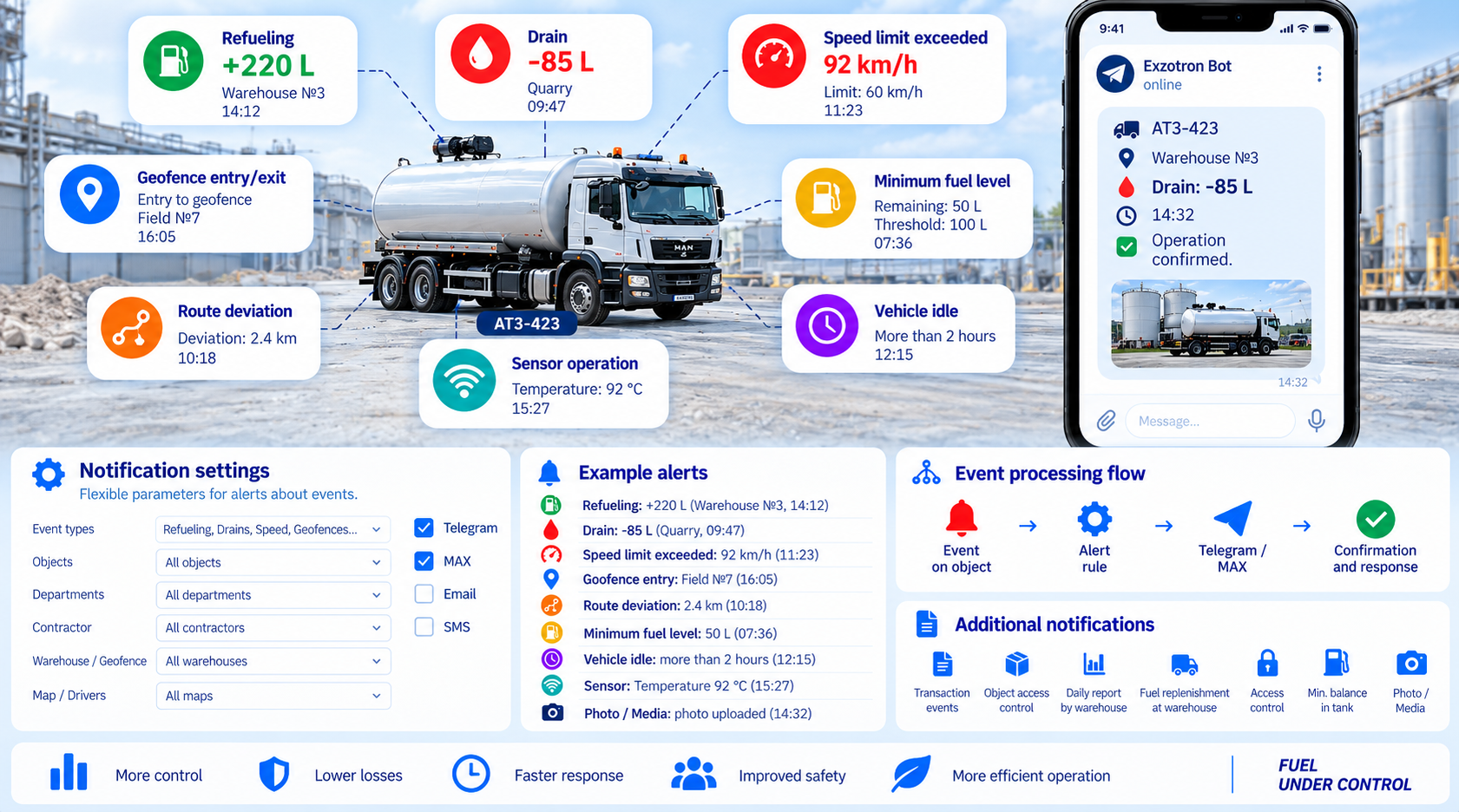
The platform automatically detects:
- · refueling;
- · fuel drains;
- · speeding;
- · entry into or exit from a geofence;
- · idling or downtime;
- · route deviations;
- · sensor-triggered events.
These events can trigger configurable notifications in Telegram and MAX. Available notifications include:
- · transaction notification;
- · notification when an access-controlled asset changes;
- · daily warehouse report;
- · confirmation of fuel entering a vehicle tank;
- · notification of fuel arrival at a warehouse;
- · access-control event;
- · minimum tank-stock warning;
- · Neuro Eye photos, including face, license-plate, and QR recognition.
Each notification can be filtered by asset, business unit, customer, warehouse, and card. Messages can be delivered through Telegram or MAX.
Figure 12. Event-based notifications and automated alerts
Reports
Seven reports are available from the top of the monitoring section:
- · Mileage — odometer readings, distance traveled, fuel consumption, engine hours, moving and idle time, average and maximum speed.
- · Asset activities — a sequence of Moving, Stopped, and No Data intervals, with timestamps, duration, and location.
- · Geofences — visits, entry and exit times, and distance traveled between geofences.
- · Speed violations — incidents with timestamps, duration, and peak speed.
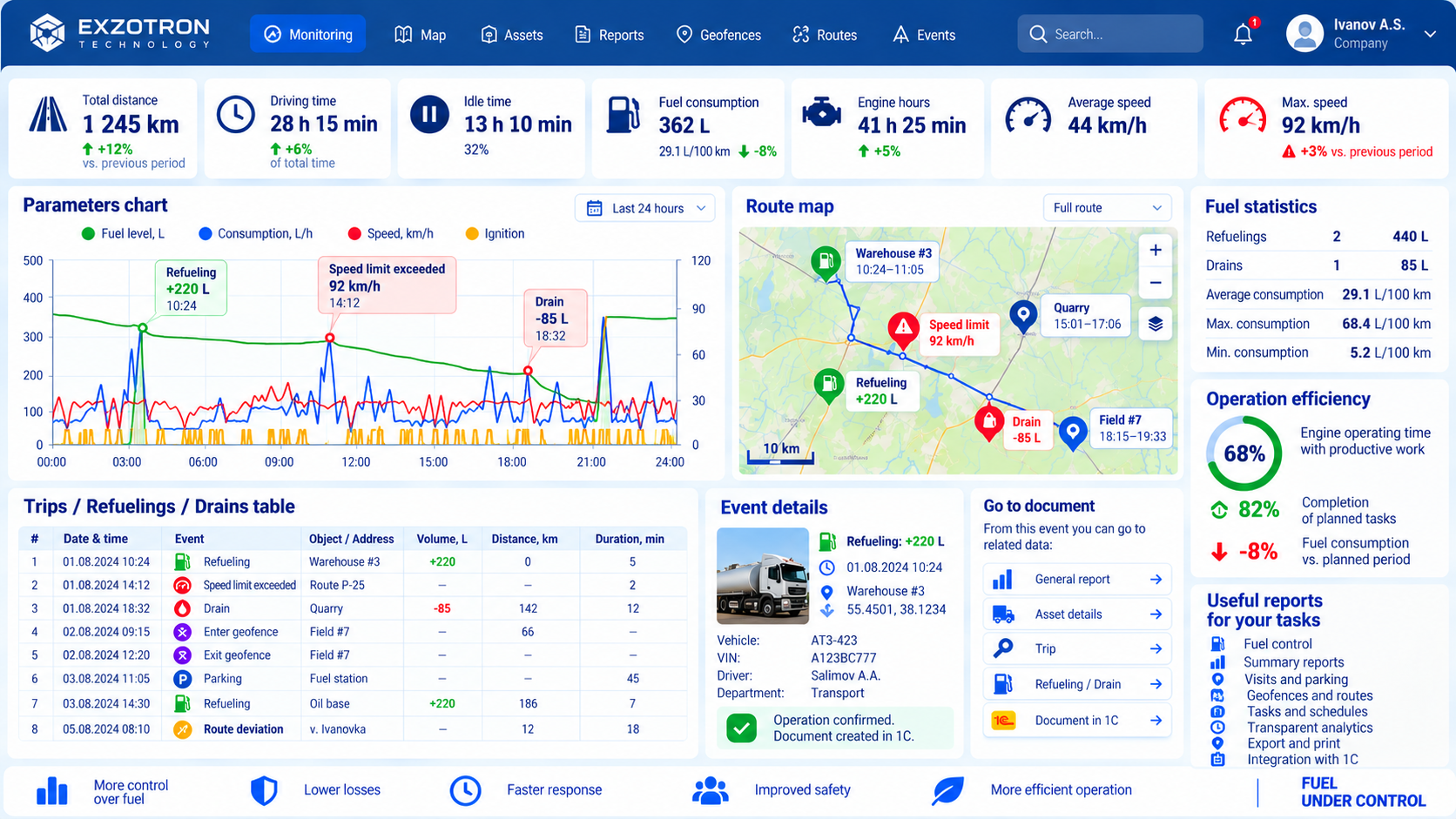
- · Fuel consumption — fuel level, refueling and drains, fuel-level charts against time, mileage, or engine hours, with speed and ignition overlays.
- · Operational efficiency — the share of movement time relative to engine operating time and the daily benchmark.
- · Temperature — minimum, maximum, and average sensor temperatures and threshold violations.
Every report opens on a separate page with controls for period, grouping, and filters, plus a Generate button. Results can be printed or exported to XLS, PDF, or CSV.
Reports are not merely tables. They provide a path from a high-level indicator to a specific operation. For example, users can drill down from monthly fuel consumption for a business unit to an asset, a trip, a fuel drain, and a supporting document.
Figure 13. Operating reports, trip history, events, and fuel analytics
Fuel consumption and efficiency control
Fuel consumption analysis deserves particular attention, because it is a key reason companies install fuel sensors, configure geofences, and track routes.
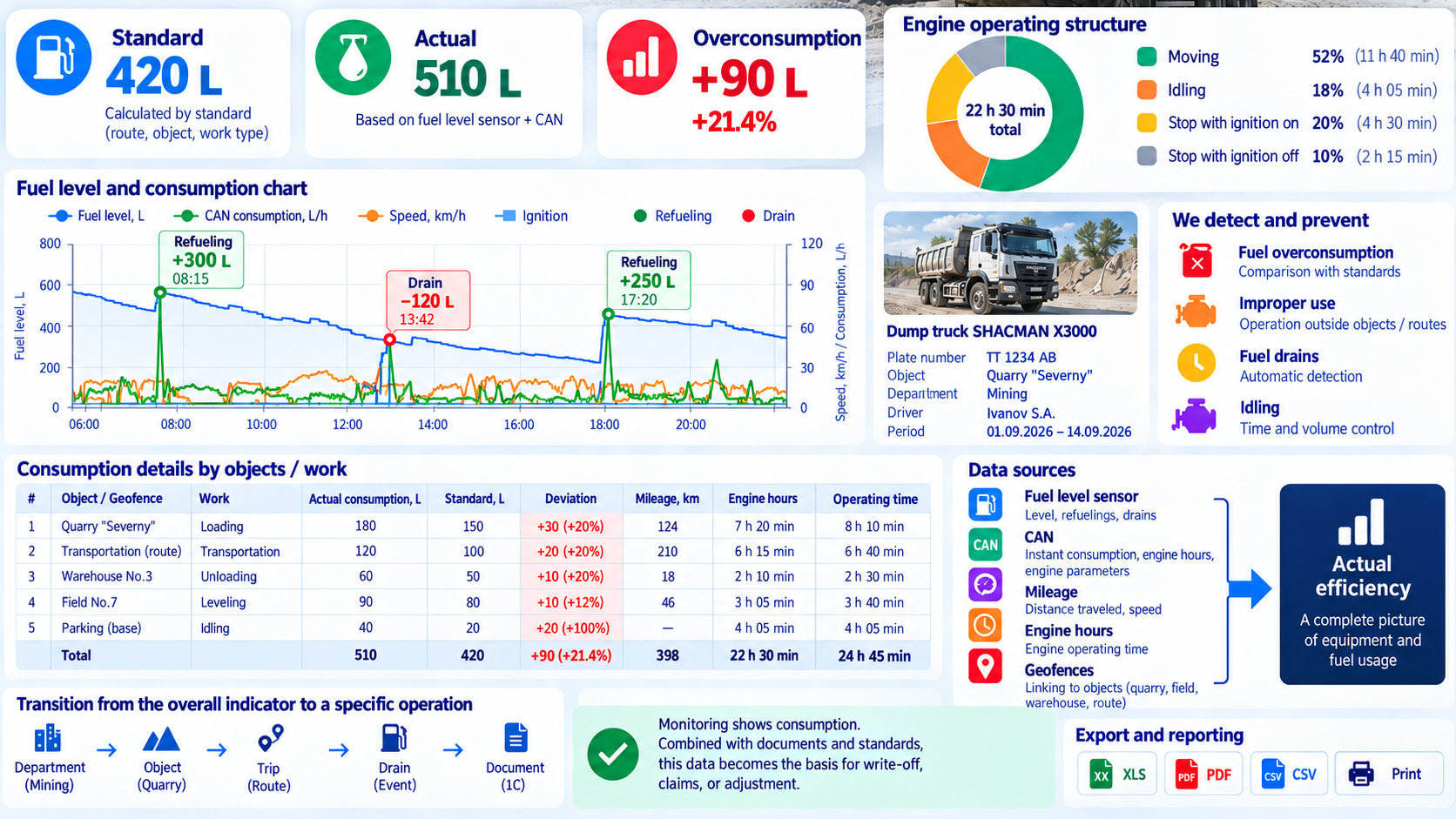
The platform allows users to:
- · compare actual consumption, based on fuel-level sensors, instantaneous CAN fuel consumption, engine hours, or mileage, with standards for a particular machine, job, route, or geofence;
- · analyze movement, idling, stopping with the ignition on, and stopping with the ignition off;
- · allocate consumption to specific assets and routes, including fuel used in a field, quarry, or trip;
- · identify excess consumption, unauthorized use, fuel drains, and excessive idling;
- · drill down from monthly consumption by business unit to the asset, trip, drain event, and supporting document.
Monitoring shows how much fuel was consumed. Only when these readings are connected with accounting documents and company-specific standards can they support a write-off, a claim, or an adjustment.
Figure 14. Actual consumption versus standards, losses, and operational efficiency
Integration with other Exzotron modules
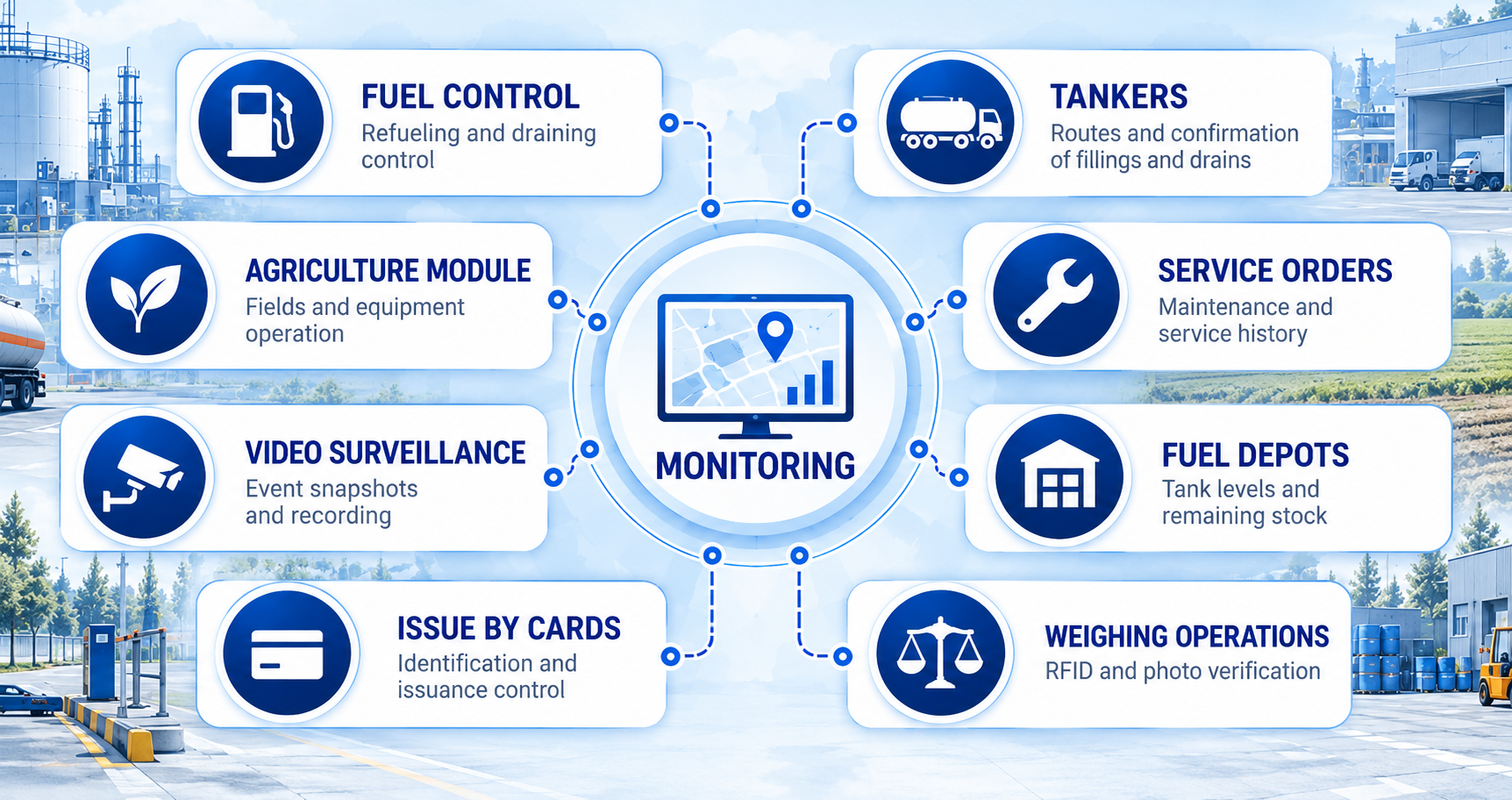
Exzotron monitoring does not operate in isolation. Its data is used throughout the platform:
- · Fuel control — sensor-detected refueling and drains are automatically reconciled with card allocations and warehouse documents.
- · Fuel tanker management — tank telemetry, routes, geofences, and confirmation of unloading.
- · Service work orders — mileage- and engine-hour-based maintenance planning and full service history in the asset record.
- · Fuel storage — linking tanks to sensors for level, temperature, density, and mass.
- · Card-based dispensing — vehicle identification, card assignment, and dispensing control.
- · Weighing operations — RFID identification, photo evidence, and association with an asset.
- · Video monitoring — image capture triggered by refueling, weighing, or geofence entry.
- · Agricultural module — linking equipment to fields and recording work performed within geofences.
Figure 15. Exzotron monitoring as the shared data layer for connected modules
Examples of connected workflows:
Fuel drain detected → fuel control reconciles the event with allocations → a discrepancy is identified → a document is created → the responsible employee is notified.
Mileage recorded → service module schedules maintenance → a work order is created → the technician performs the work → photo report → completion certificate.
Warehouse geofence entered → the system matches the visit to a request → an inventory receipt is created.
This shared environment prevents duplicated and inconsistent records. Every module uses the same database of assets, sensors, and geofences.
User roles and access permissions
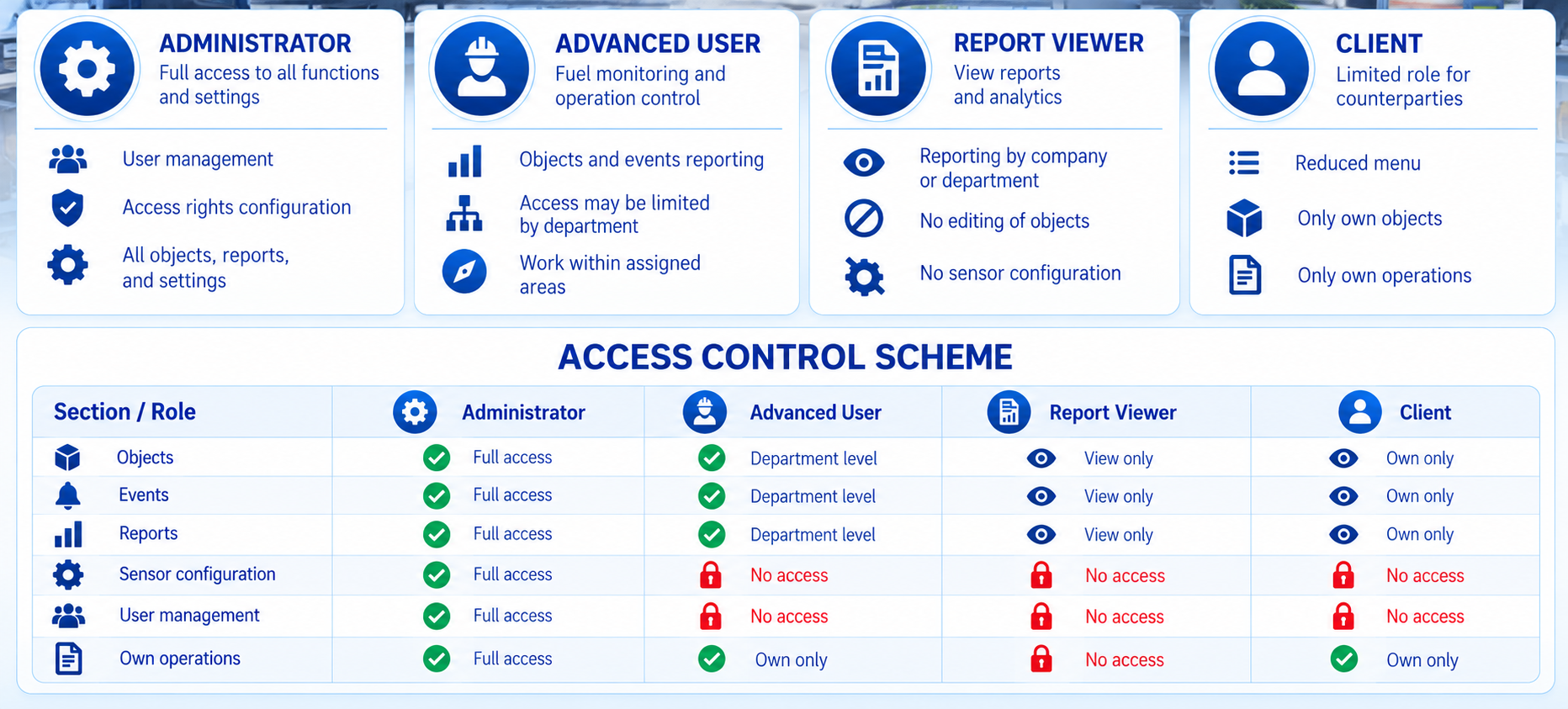
Four user roles are available:
- · Administrator — full access to all functions, user creation, and permission management, including every asset, report, and setting.
- · Advanced User — broad control over fuel movement and operations; access can be restricted to selected business units. Users see assets, reports, and events within their scope.
- · Reports — read-only access to company-wide or business-unit reporting, without permission to edit assets or configure sensors.
- · Client — a restricted role for external customers, with a limited menu and access only to their own assets and operations.
Each role determines which sections and actions are available, supporting data security and separation of responsibilities.
Figure 16. Role-based access control
Use cases
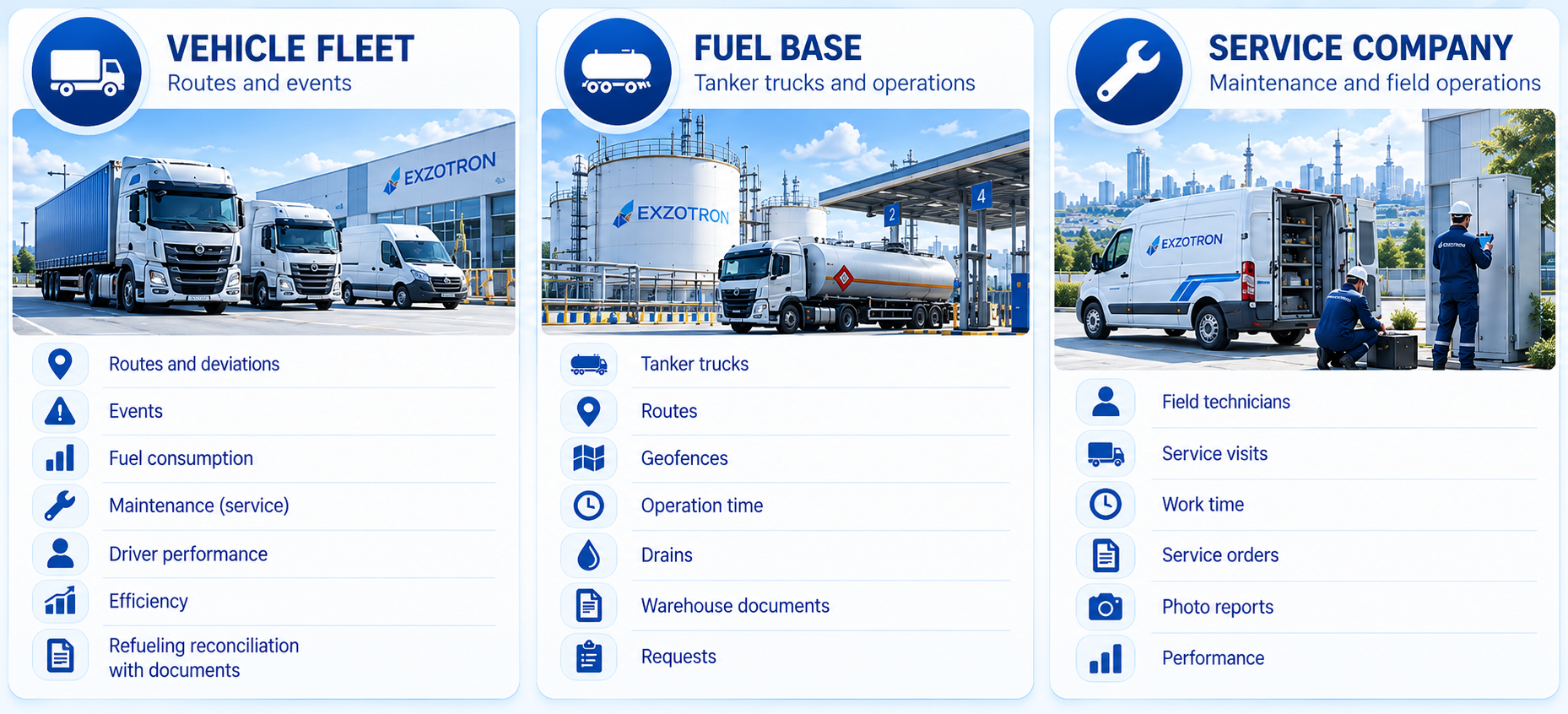
Vehicle fleet
A dispatcher monitors routes, detects deviations, and responds to events. A mechanic analyzes consumption and schedules maintenance. A manager reviews equipment utilization and driver discipline. The fuel control module automatically reconciles refueling with supporting documents.
Fuel depot
Monitoring verifies fuel delivery through tanker routes, geofences, operation times, and unloading events. These records are linked to warehouse documents and requests.
Service company
Monitoring tracks technicians’ movements, site visits, and working time. These records complement service work orders and photo reports.
Figure 17. Fleet, fuel depot, and service provider use cases
Conclusion
Exzotron monitoring is more than a map with vehicle tracks. It is a telematics layer built into a unified operational and accounting environment. You can see not only where equipment is located, but also how it operates, how much fuel it consumes, and what evidence supports each operation. Monitoring data becomes part of a consolidated asset history available to dispatchers, mechanics, managers, and field-service engineers.
Exzotron does not simply replace your existing monitoring system. It brings monitoring data into a unified management environment, where it can be used for accounting, operational control, and decision-making.
Exzotron Technology develops solutions for automating fuel accounting, dispensing, transportation, and control. Its capabilities include request management, fuel tanker operations, telematics, fuel-level sensors, geofences, fuel inventory management, RFID, and integration with accounting systems.
Presentation: https://www.exzotron.com/Презентация_на_Мониторинг_Exzotron.pdf
Want to see how Exzotron works with your data? Request a demonstration and an assessment of the potential benefits of implementation.